
How to do it
Open your terminal app, navigate to the directory you’re working in, and run:
python -m http.serverThis starts a local Python server, making it accessible from any device connected to the same Wi-Fi. Access it by entering your PC’s IP address and port number into your phone’s browser. On a Mac, you can find the IP address from System Preferences → Network, or with the ifconfig command. The default port number is 8000. For example, if your IP address is 192.168.11.11, you can preview by accessing 192.168.11.11:8000.
Explanation
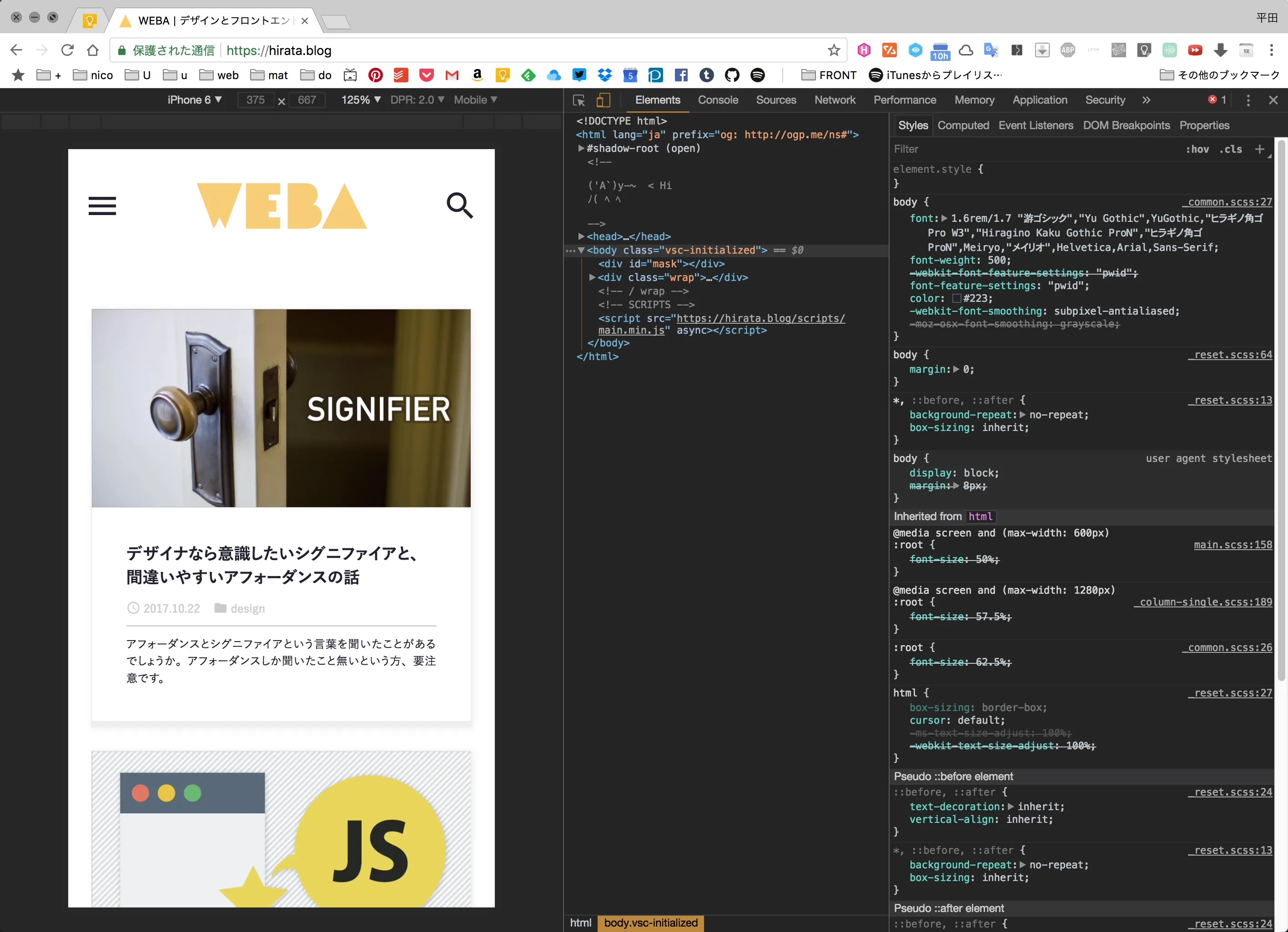
When building a website or web app, there are many situations where you’d like to check the page you’re working on locally at smartphone size. Basically, Chrome’s mobile preview mode (open the dev tools and click the smartphone icon, or ⌘⌥I → ⌘⇧M) works fine, but it’s not enough for verifying the exact CSS behavior on a real device or for explaining the actual design intent.
Or if you have a development server set up in an environment like Gulp or Rails, you can use those features—but when you just want to quickly view a static HTML file on your phone, it’s a hassle to set up a development environment every time. In such cases, on a Mac, you can use the Python feature that’s installed by default and easily start a server with the command above.